Q: I replaced the default skeletal mesh of the player character with a mixamo character mesh. And now I cannot see the footstep rings when the character is running. How do I fix this?
A: Since you're using a mixamo character, I think it's using the mixamo animation blueprint instead of the animation blueprint used the by the default character. The footstep rings are called from the animation blueprint, so you'll have to copy that code to the mixamo character's animation blueprint. You can follow the step detailed below to get the footstep rings working:
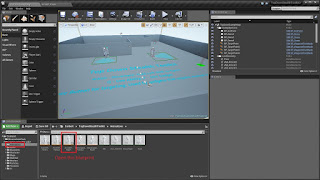
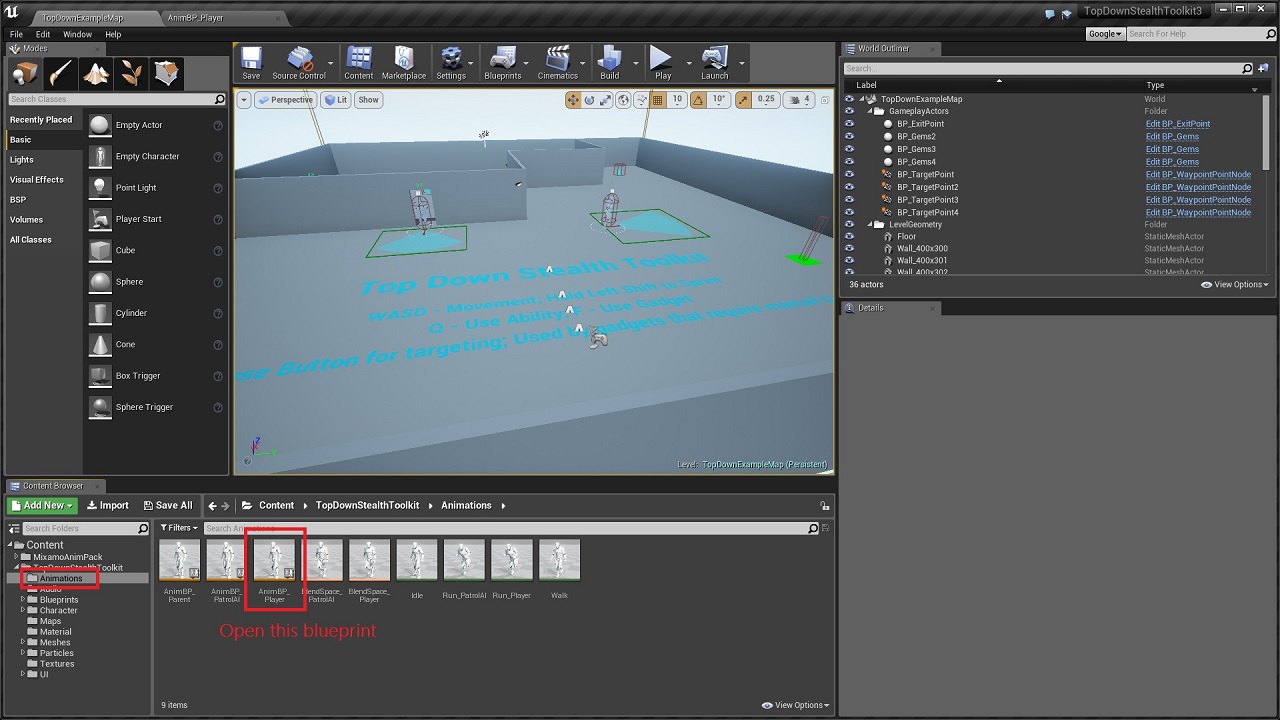
1. Open the 'AnimBP_Player' under the animations folder.
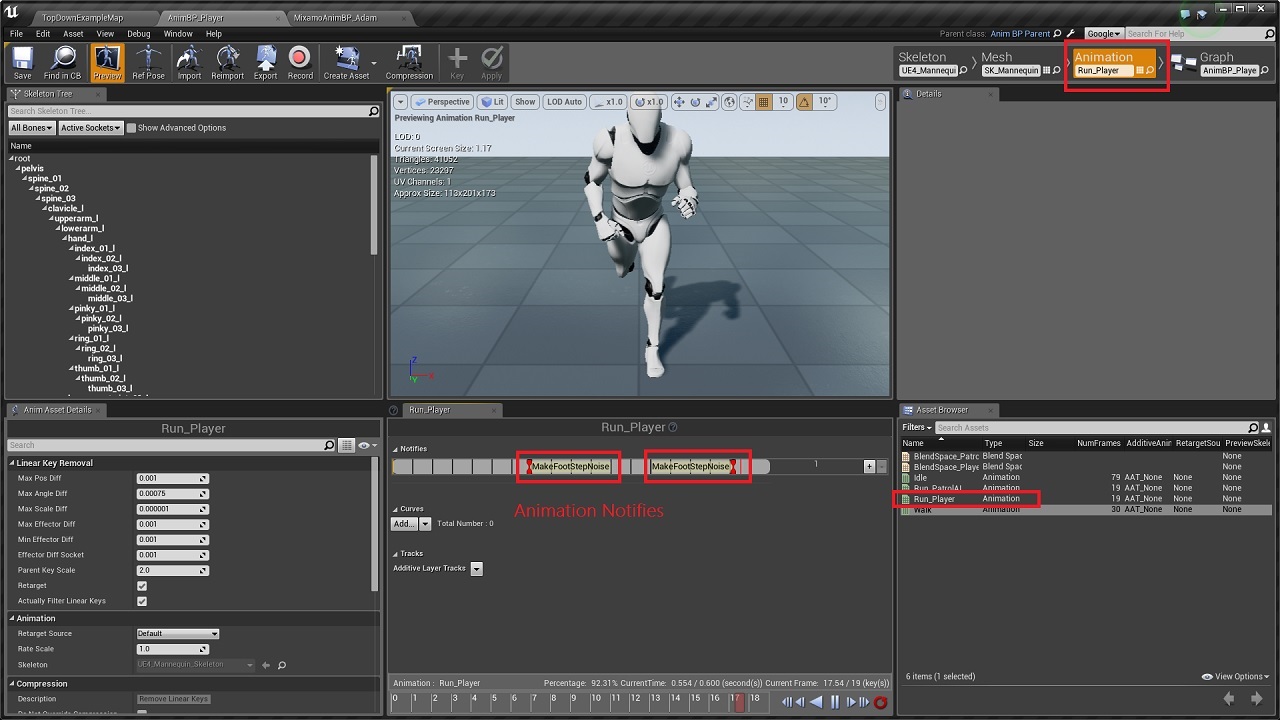
2. Under the Animation tab, double click on the 'Run_Player' animation. You will notice that there are two red markers along the animation track. These are notify events that get triggered everytime the animation reaches the point where a feet touches the ground. So we have one each for left & right foot for a single cycle of the run animation.
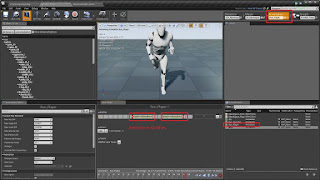
3. Now if you go to the Anim Graph for the same blueprint, you will notice that I've added the anim notify event for footstep noise. This event gets triggered from the anim notifies we placed along the run animation. So using this event, we spawn the ring particle for footstep & then call the 'Make Footstep/Whistle Noise' from player character blueprint.

Now we'll implement the same in Adam's animation blueprint.
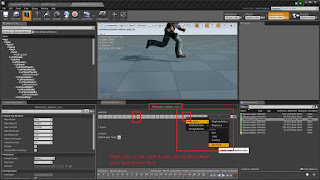
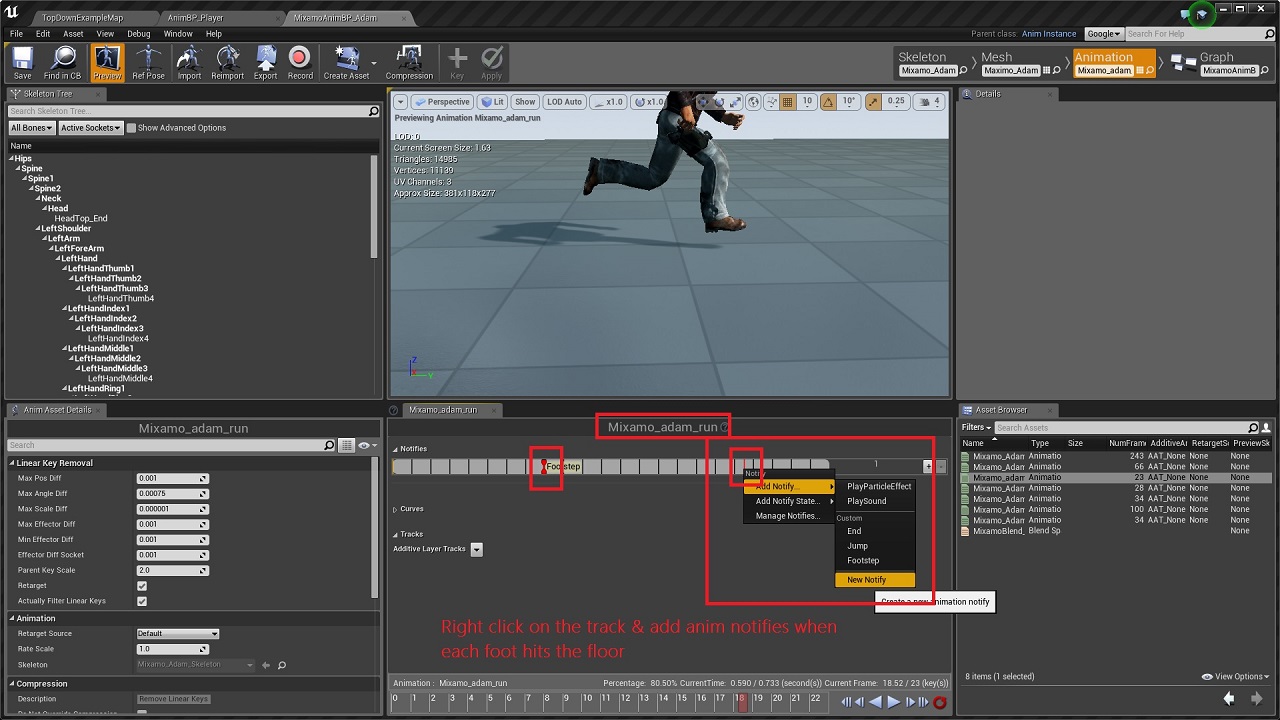
4. So within the Animation Tab of Adam Animation BP, double click on the run animation. Now right click on the track & add a new anim notify when the first foot hits the ground. Then add the same notify again later down the track when the other foot hits the ground. With that, we have the anim notifies set up everytime the feet hits the floor.
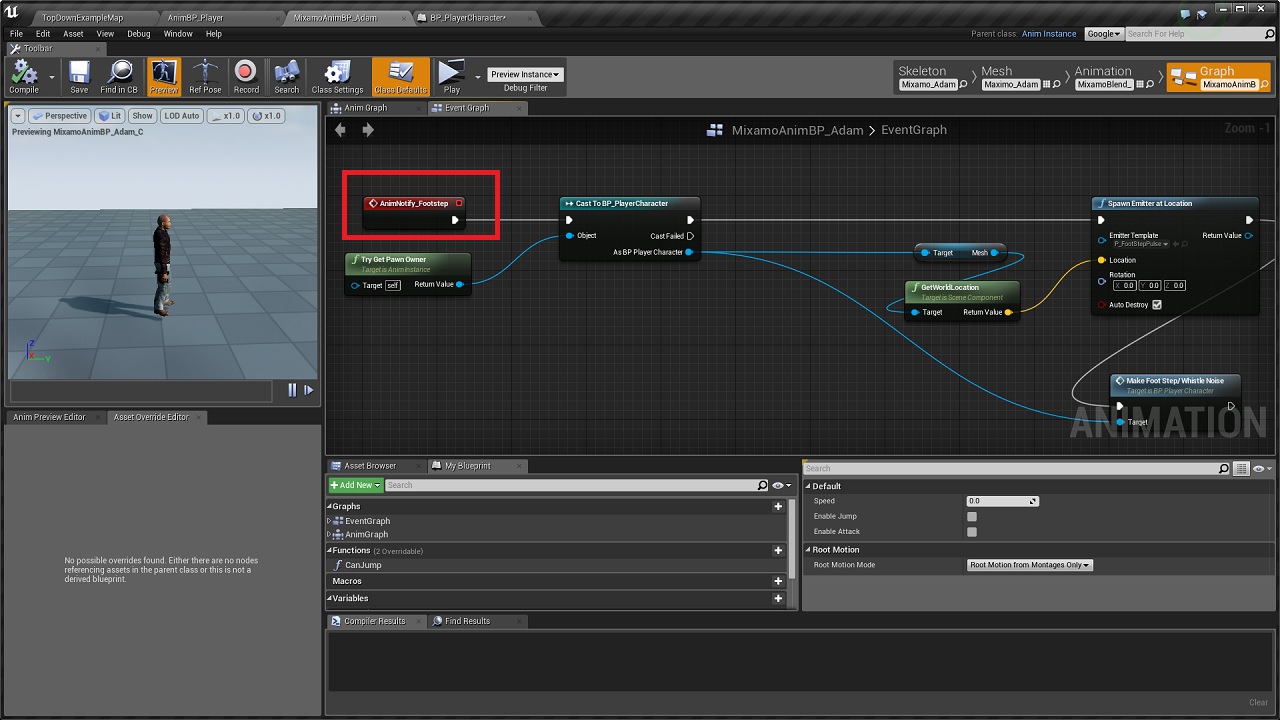
5. Now we need to go to the Anim Graph of the same blueprint & call the notify event. Right click anywhere on the graph & type in the name of the notify that you had given in the previous step. I gave the name 'FootStep' for the notifies, so m event will be named automatically as 'AnimNotify_Footstep'. Add the event in the graph & copy the particle spawn & foot step noise code into this.

6. Now within the Animation tab for Adam, if you check out the blend space, you will notice that the speed ranges from 0 to 400.

So now we just need to set the walk and sprint speed for our player character in the 0 to 400 range. So go to 'BP_PlayerCharacter' & set the 'WalkSpeed' variable to 190 & 'SprintSpeed' variable to 400.
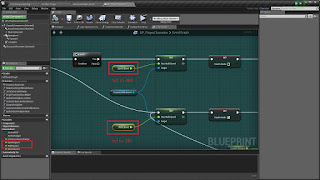
With that, you should be able to get the footstep rings working.
For more information about the toolkit, check out the official Unreal Engine forum support thread at: https://forums.unrealengine.com/showthread.php?97156-Top-Down-Stealth-Toolkit
A: Since you're using a mixamo character, I think it's using the mixamo animation blueprint instead of the animation blueprint used the by the default character. The footstep rings are called from the animation blueprint, so you'll have to copy that code to the mixamo character's animation blueprint. You can follow the step detailed below to get the footstep rings working:
1. Open the 'AnimBP_Player' under the animations folder.
2. Under the Animation tab, double click on the 'Run_Player' animation. You will notice that there are two red markers along the animation track. These are notify events that get triggered everytime the animation reaches the point where a feet touches the ground. So we have one each for left & right foot for a single cycle of the run animation.
3. Now if you go to the Anim Graph for the same blueprint, you will notice that I've added the anim notify event for footstep noise. This event gets triggered from the anim notifies we placed along the run animation. So using this event, we spawn the ring particle for footstep & then call the 'Make Footstep/Whistle Noise' from player character blueprint.

Now we'll implement the same in Adam's animation blueprint.
4. So within the Animation Tab of Adam Animation BP, double click on the run animation. Now right click on the track & add a new anim notify when the first foot hits the ground. Then add the same notify again later down the track when the other foot hits the ground. With that, we have the anim notifies set up everytime the feet hits the floor.
5. Now we need to go to the Anim Graph of the same blueprint & call the notify event. Right click anywhere on the graph & type in the name of the notify that you had given in the previous step. I gave the name 'FootStep' for the notifies, so m event will be named automatically as 'AnimNotify_Footstep'. Add the event in the graph & copy the particle spawn & foot step noise code into this.
6. Now within the Animation tab for Adam, if you check out the blend space, you will notice that the speed ranges from 0 to 400.

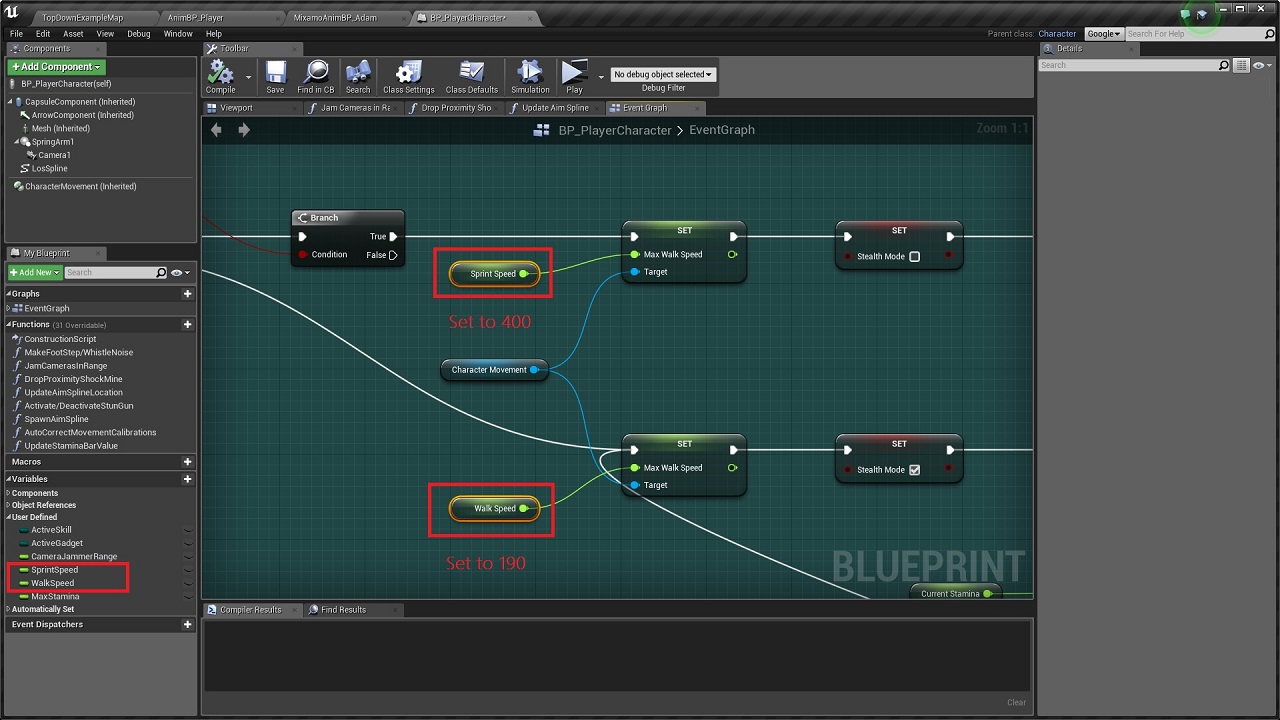
So now we just need to set the walk and sprint speed for our player character in the 0 to 400 range. So go to 'BP_PlayerCharacter' & set the 'WalkSpeed' variable to 190 & 'SprintSpeed' variable to 400.
With that, you should be able to get the footstep rings working.
For more information about the toolkit, check out the official Unreal Engine forum support thread at: https://forums.unrealengine.com/showthread.php?97156-Top-Down-Stealth-Toolkit

No comments:
Post a Comment